

A Data Scientist with no data is only as good as a carpenter with no timber. They may have exceptional skills with all the tool sets but neither of them have what's important to show off those exceptional skills.
The overall estimated size of data on the internet today is 1.2 million terabytes. That is a huge number and clearly, more than 70% of this data is available in the public domain. Data has become omnipresent yet it is possible that a Data Science enthusiast may end up with no interesting data. This is why Web-Scraping should be one of the top skills of a Data Scientist. Data Scientist may not always be provided with formatted data to understand the science of it. Sometimes he/she can just be shown the path to the right data or simply it is a choice to find interesting data. Web-Scraping is the easiest way to gather data from this huge virtual world of Internet.
This article is to help anyone with less than a basic programming knowledge especially python to Scrape anything from a webpage.
All readers should also bear in mind that not all websites or web pages are meant to be scraped as long as you don't want to do anything against the law. Appending /robots.txt to a website-url will show you what you are allowed to scrape and what not.
Introduction To Scrapy
Scrapy is an open source framework that facilitates programmers to scrape data from any webpage. Scrapy is available in python as a package.
Let's Begin!
Installing Scrapy
Using pip
If you just want to install scrapy globally in your system, you can install scrapy library using the python package ‘pip’. Open your terminal or command prompt and type the following command.
pip install scrapy
Using Conda
If you want scrapy to be in your conda environment just type in and execute the following command in your terminal
conda install -c conda-forge scrapy
Let's start scraping!!
A Dummy Webpage
Here is a dummy webpage to learn scraping. Copy and paste the below html code to a file and save it as html.
Hi I am Scrapy!!
Scrapy is a free and open-source web-crawling framework written in Python. Originally designed for web scraping, it can also be used to extract data using APIs or as a general-purpose web crawler. It is currently maintained by Scrapinghub Ltd., a web-scraping development and services company.
Official Page
Click here to visit the official page
History
Scrapy is a free and open-source web-crawling framework written in Python. Originally designed for web scraping, it can also be used to extract data using APIs or as a general-purpose web crawler. It is currently maintained by Scrapinghub Ltd., a web-scraping development and services company.
Reference
Wikipedia Link --> Click
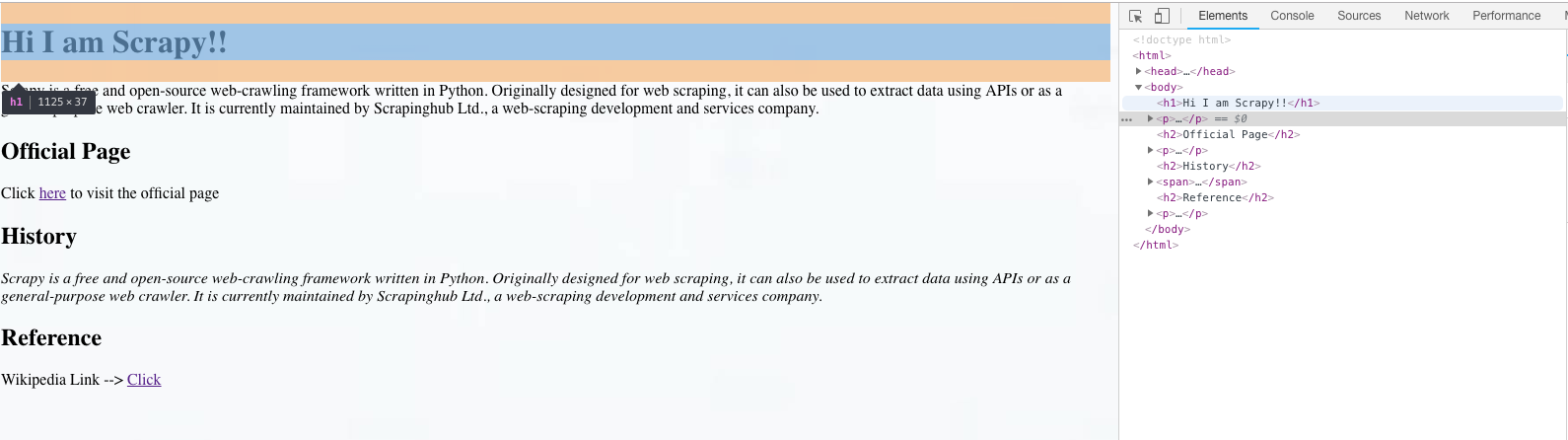
When you open the file with a browser you will see the page as shown below:

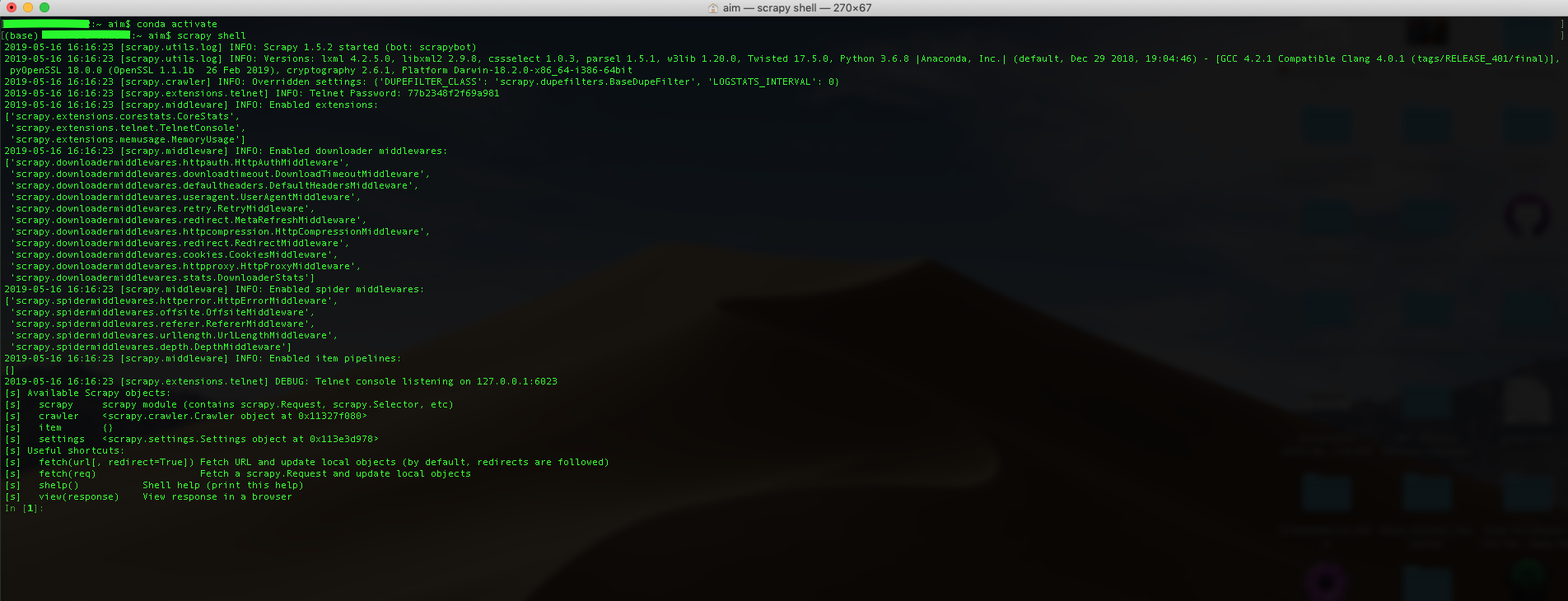
The scrapy shell
The scrapy shell is a utility that allows us to scrape web pages interactively using the command line.
To open scrapy shell type scrapy shell.
If you have installed scrapy in a virtual environment like conda, make sure to activate the environment using conda activate before using scrapy shell command
After executing you will find a similar console :
Scraping with Scrapy Shell
Follow the steps below to start scraping :
1. Open the html file in a web browser and copy the url.
For me it is : file:///Users/aim/Desktop/web_eg.html
2. Now in the scrapy shell type and execute the following command:
fetch(“url--”)
Replace url-- with the url of the html file or any webpage and the fetch command will download the page locally to your system.
You will get a similar message in your console
[scrapy.core.engine] DEBUG: Crawled (200)
3. Viewing the response
The fetch object will store whatever page or information it fetched into a response object. To view the response object simply type in and enter the following command.
view(response)
The console will return a True and the webpage that was downloaded with fetch() will open up in your default browser.
4. Now that all the data you need is available locally. You just need to know what data you need. In this example we will scrape the main heading of the page, all subheadings, the content in History and the hyperlinks provided in the page.
For each web-page the level of creativity and the arrangement of elements and structuring can be entirely different and unique. To identify the elements or attributes that you need to scrape, most of the web browsers come with a feature called ‘inspect’ or ‘inspect element’ that allows users to see the construction of the page. See the below image.
5. Scraping the data
Coming back to the console, we will now print all the elements behind the webpage that was fetched earlier. Enter the following command:
print(response.text)
Output:
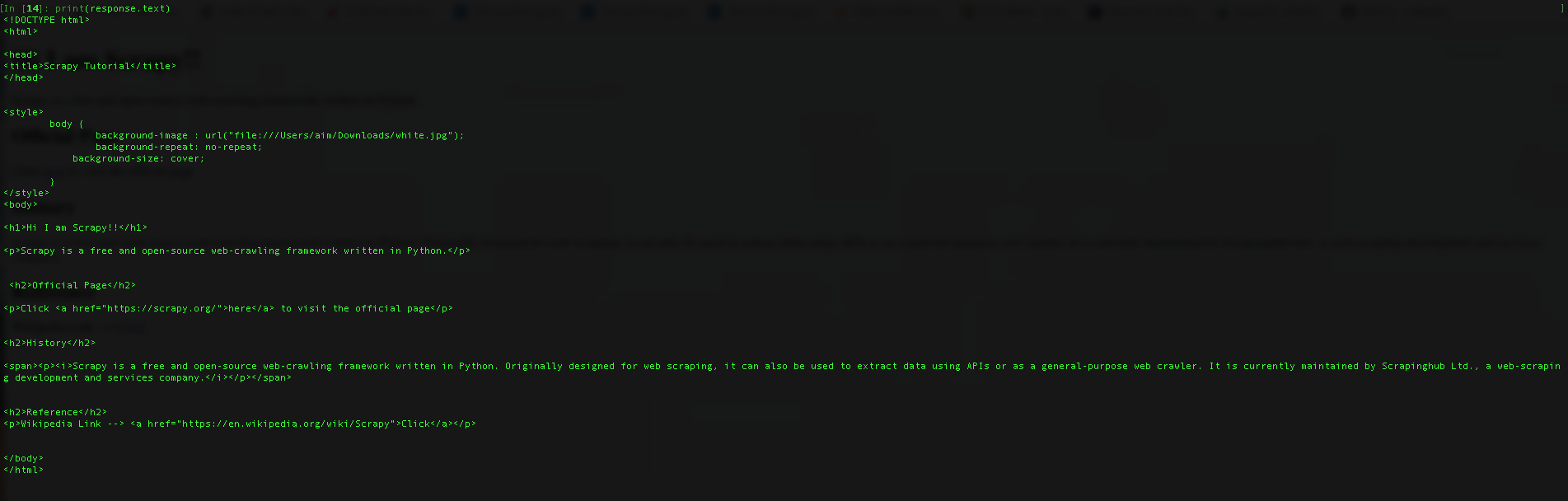
Execute the following commands one by one to extract the main heading of the page, all subheadings, the content in History and the hyperlinks provided in the page.
a. The main heading
Identified as the
tag, execute the following code
response.css("h1").extract()
Output : ['
Hi I am Scrapy!!
']We are only interested in the data, however the previous command returned the entire
html tag.In order to get only the data we add the text selector “::text” as shown below:
response.css("h1::text").extract()
Output : ['Hi I am Scrapy!!']
The output is always a list. What it means is that the command will extract any and all the information contained in any and all the
tags present in the webpage. Let us understand by scraping the subheadings.
b. The Subheadings
By inspecting the subheadings on a browser we found they are contained by the
tags. So type in the following command.
response.css("h2::text").extract()
Output : ['Official Page', 'History', 'Reference']
Not so surprisingly it returns all the three Subheadings in the webpage in a list.
If you are only interested in the first subheading, you can use the extract_first() method as shown below:
response.css("h2::text").extract_first()
Output : 'Official Page'
You can also traverse through the list like a normal python list using indexes as shown below the index 1 returns the second item in the list returned by the extract method:
response.css("h2::text").extract()[1]
Output : 'History'
c. The content in History
Identified by the only italics style ( tag) in the page, we will extract the data using the following command:
response.css("i::text").extract()
Output : ['Scrapy is a free and open-source web-crawling framework written in Python. Originally designed for web scraping, it can also be used to extract data using APIs or as a general-purpose web crawler. It is currently maintained by Scrapinghub Ltd., a web-scraping development and services company.']
d. The hyperlinks
The links are present in the elements as attributes, to get an attribute from an html element using scrapy we use the “::attr()” selector. Let us extract the hyperlinks
response.css("a::attr(href)").extract()
Output : ['https://scrapy.org/', 'https://en.wikipedia.org/wiki/Scrapy']
Here is a serial execution of all the commands discussed above.

After Extraction
We can store all the extracted values into variables and put them in a well-formatted csv or excel files.
Conclusion
Web-scraping is an important skill to have for a Data Scientist and Scrapy just makes the process easy by bringing together a lot of functionalities together into a single package.
- From Humanoid Robots to Telecom Trials, 12 Major Announcements at NVIDIA GTC Berlin 2026
- Anyone Can Make a Robot Move, Few Can Make It Stop
- After ISRO’s PSLV Failure, TakeMe2Space Looks to SpaceX for Reliable Launch
- Why AI Agents are the Next Frontier in Quantum Security
- Physical AI Squeezes Labour Market, And Low-Skilled Immigrant Jobs May Be First to Fall
- Rocket Math Isn’t Mathing: Why India’s Space Launches are Expensive